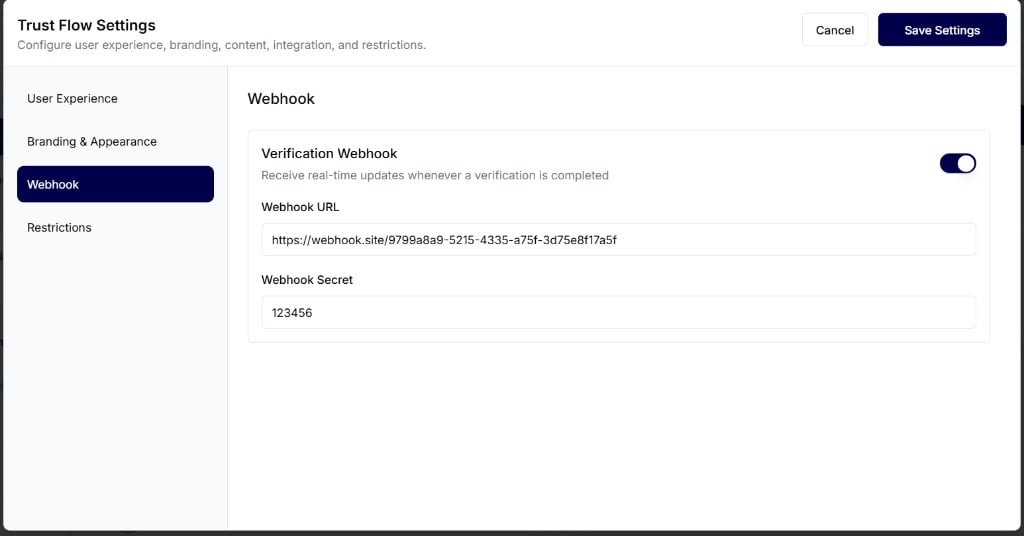
Verification Webhook
Enable this toggle to receive webhook notifications whenever a verification is completed. When Verification Webhook is enabled, enter these fields:- Webhook URL — The endpoint URL where IDmeta sends verification completion events.
- Webhook Secret — A secret used to validate that webhook requests come from IDmeta.
Webhook secret in the received request
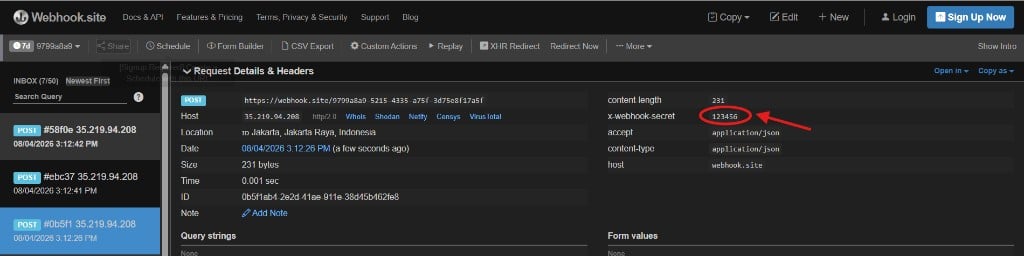
After a verification is completed, IDmeta sends a webhook request to your Webhook URL. The Webhook Secret you entered in Trust Flow Settings is included in the request header asx-webhook-secret.
For example, if you set Webhook Secret to 123456, the received request includes:
x-webhook-secret: 123456
Webhook payload
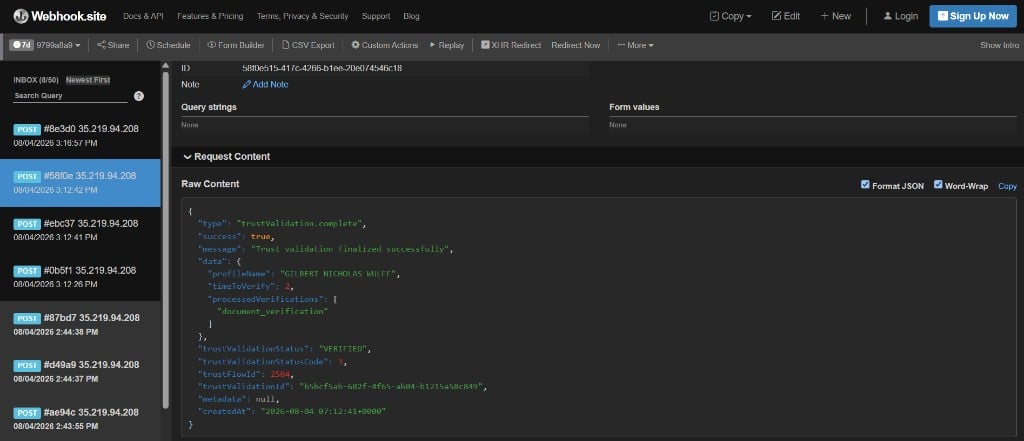
When a Trust Flow verification finishes, IDmeta sends aPOST request with a JSON body. The event type is trustValidation.complete.
The payload includes verification outcome fields such as success, trustValidationStatus, trustFlowId, trustValidationId, and a data object with details like profileName, timeToVerify, and processedVerifications.