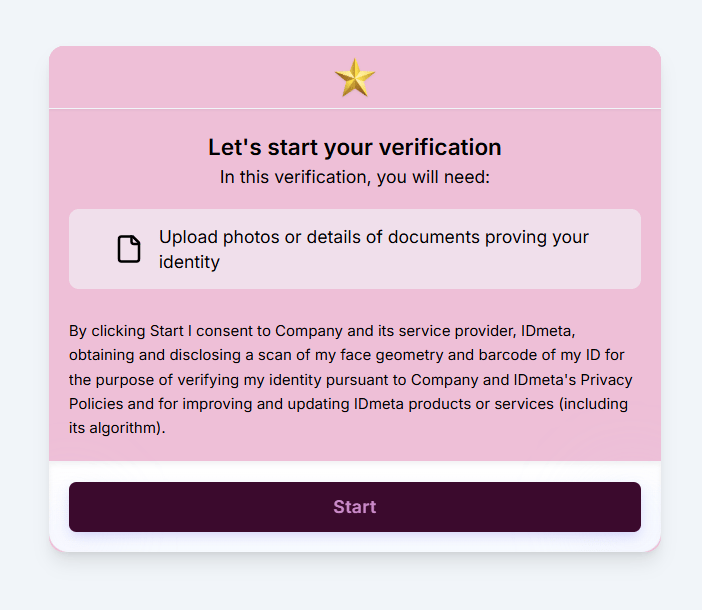
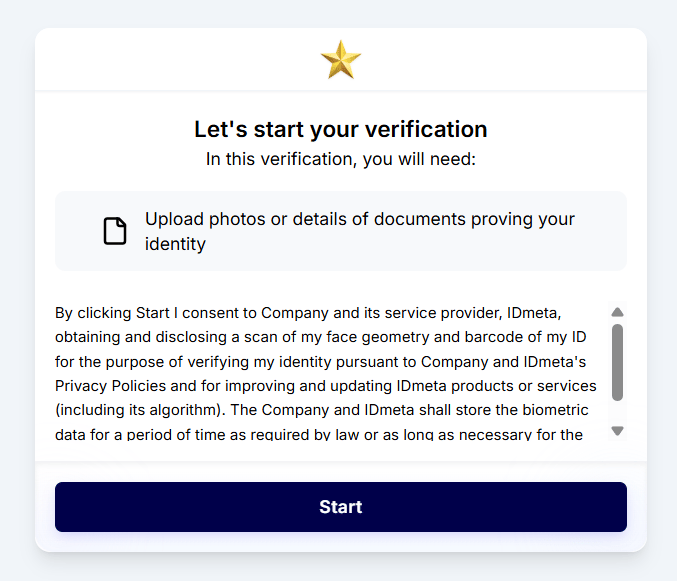
The Branding & appearance section in Trust Flow Settings lets you control the visual style and text shown to applicants during verification. After you create a Trust Flow, open Trust Flow Settings and go to Branding & appearance. Upload your company logo. Click the upload area to add an image that appears during the verification flow. After you upload a logo, it appears at the top of the verification screens, such as the Welcome & Consent page. Welcome and Consent page showing an uploaded company logo
Typography

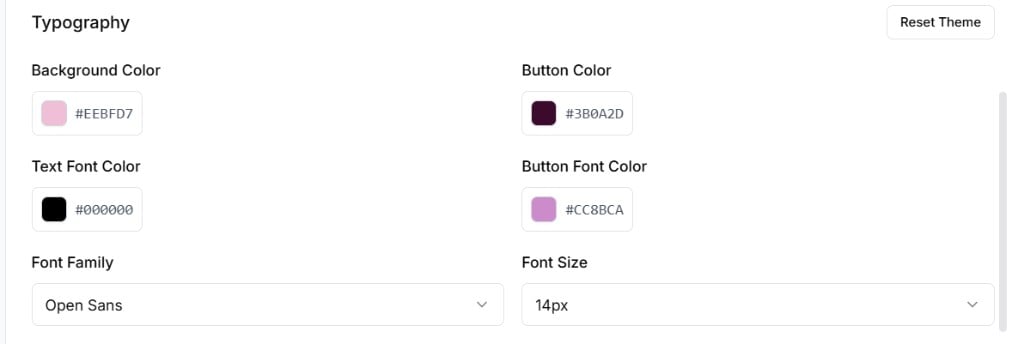
Use the Typography settings to control colors and fonts. You can also use Reset Theme to restore the default theme.
  • Background Color — Background color of the verification screens.
  • Button Color — Color of primary action buttons.
  • Text Font Color — Color of body and heading text.
  • Button Font Color — Color of text on primary action buttons.
  • Font Family — Font used across the verification screens.
  • Font Size — Base font size for text.
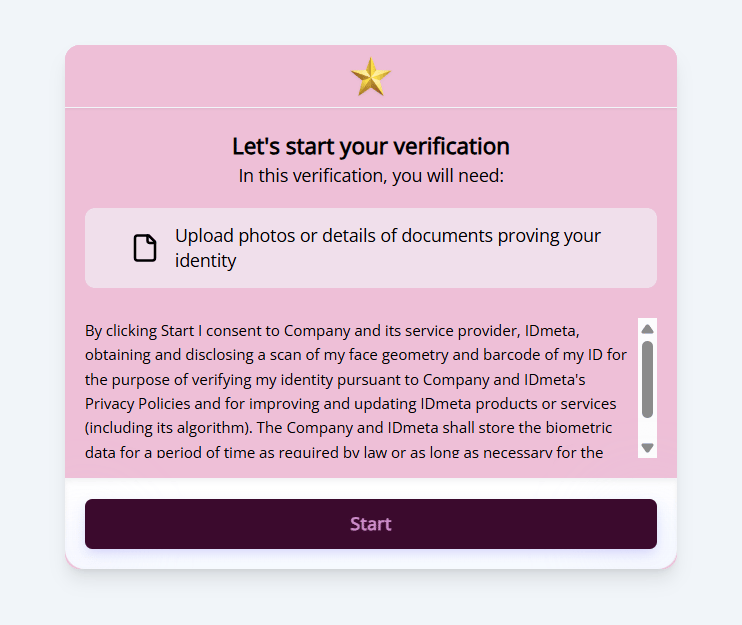
Typography settings in Branding and Appearance Changes apply to the verification screens. For example, updating the button color and font family updates the Start button and text style on the Welcome & Consent page. Welcome and Consent page showing updated typography and button styling

Text & content

Privacy Policy

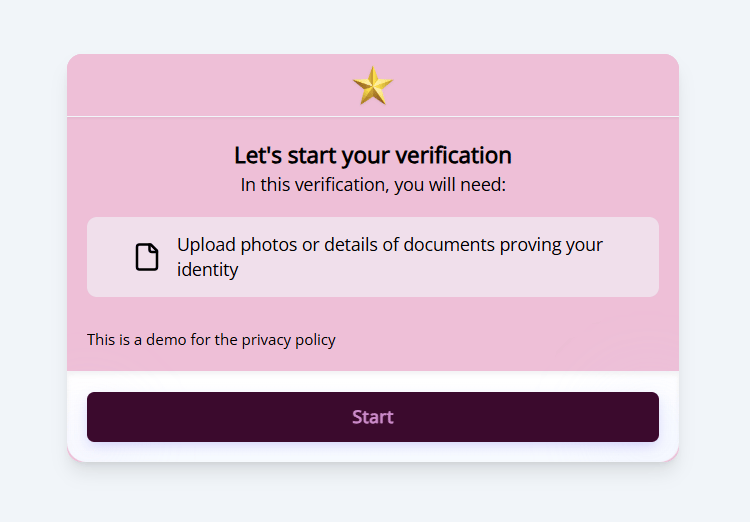
Enter the privacy policy text shown to applicants before they begin verification. This text appears on the Welcome & Consent page. Before you update it, the Welcome & Consent page may show the default longer consent text. Welcome and Consent page showing the default privacy policy text After you update the Privacy Policy field in Branding & Appearance, the Welcome & Consent page shows your new text. Welcome and Consent page showing the updated privacy policy text
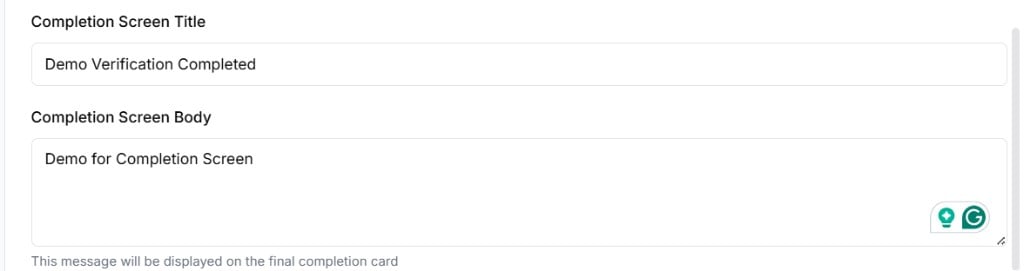
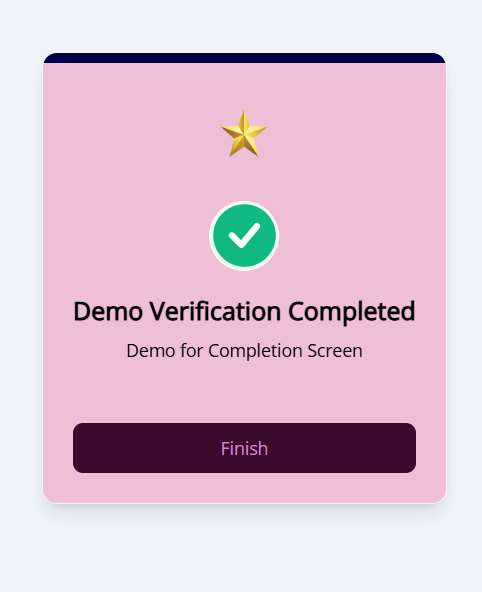
Completion Screen Title

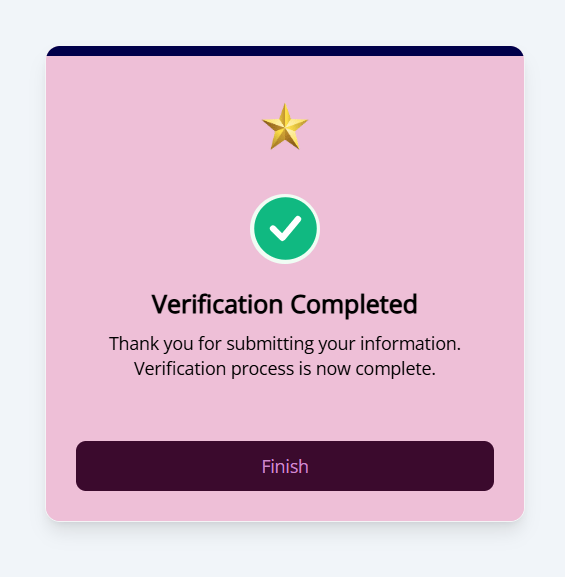
Enter the title shown on the final completion card (for example, Verification Completed!).

Completion Screen Body

Enter the message shown on the final completion card (for example, Thank you for submitting your information. Verification process is now complete. Please contact us if have any question). Update these fields in Branding & Appearance: Completion Screen Title and Body fields in Branding and Appearance After you save the settings, the completion screen shows your updated title and body text. Verification Completed screen showing the updated title and body For related Trust Flow setup, see Trust Flow Settings.