

Overview
The Advanced Face Compare feature can compare the potrait extracted from the document against a Biometrics Verification selfie from an earlier completed Trust Validation. This is done by comparing:- the potrait extracted during the current Document Verification session, and
- the selfie captured during a previous Biometrics Verification Trust Flow
stvid (sourceTrustValidationId) in the Direct Link / preview URL.
This feature is available upon request and is not enabled on your account by default. If Perform Advance Face Compare is not available in tool settings, enable it via the feature flag on your company, or contact your support administrator.
Why this feature is needed
You may already have a completed Trust Validation that includes Biometrics Verification. Later, you may run a separate Document Verification flow and need to confirm that the person on the document matches the biometric selfie from that earlier Trust Validation. Common situations include:- linking a new document to an identity that was already biometrically verified
- re-checking identity continuity across separate Trust Flows
- verifying a document against a known biometric source when you already have the prior Trust Validation ID
Use this feature when you already know the source Trust Validation ID and want to reuse its Biometrics Verification selfie for face compare.
How it works
Create two Trust Flows.1. Trust Flow 1 — Biometrics Verification (source selfie)
Create a Trust Flow that includes Biometrics Verification. Run this flow first. When it completes, copy the Trust Validation ID from the result. You will pass this value asstvid in Trust Flow 2.
Do not enable Perform Advance Face Compare in this Trust Flow. This flow only captures and stores the source biometric selfie.

2. Trust Flow 2 — Document Verification with Advanced Face Compare
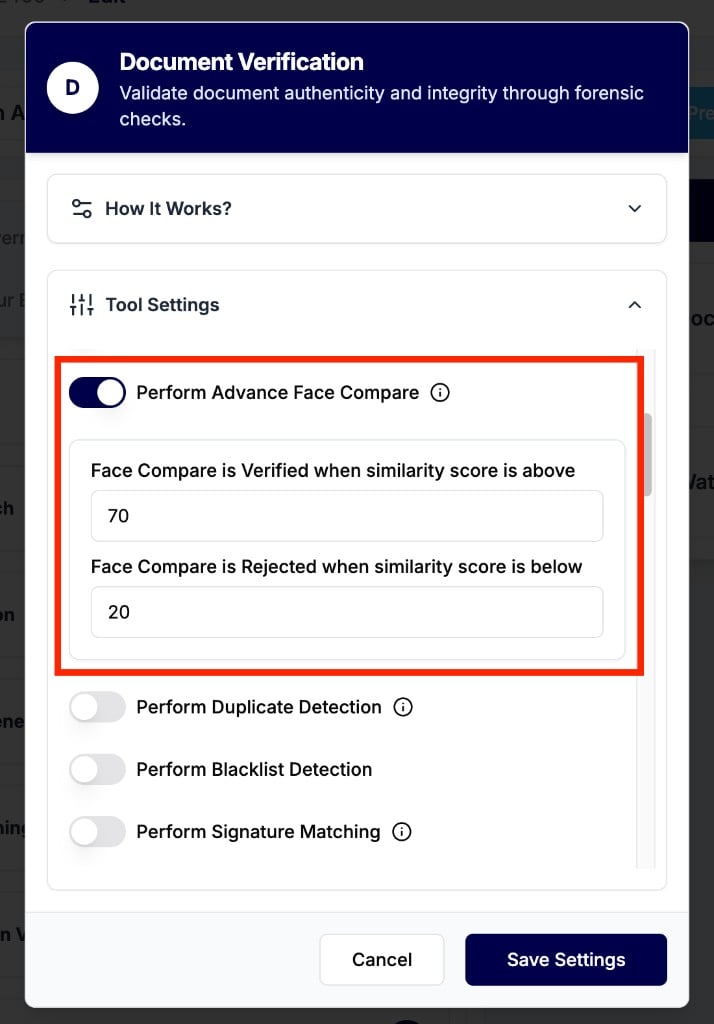
Create a second Trust Flow that includes Document Verification. In the Document Verification Tool Settings, enable:Perform Advance Face Compare
If this option is not visible, enable the feature flag on your company, then refresh tool settings.
3. Pass stvid when running Trust Flow 2
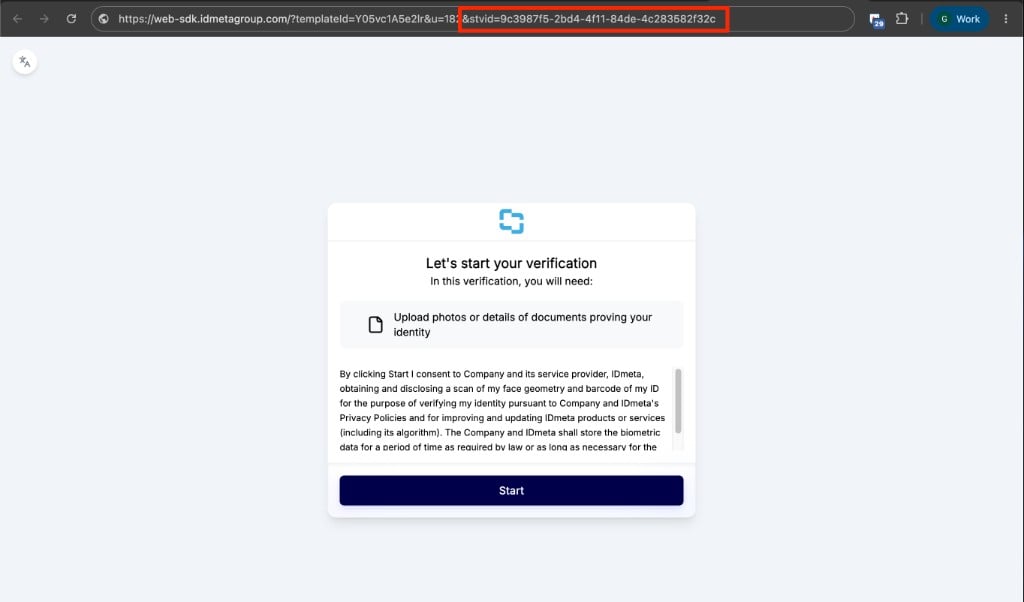
After Trust Flow 1 has completed, run Trust Flow 2. On the preview / Direct Link URL, add the stvid parameter with the Trust Validation ID from Trust Flow 1:
stvid
Example:
End-to-end flow
Trust Flow 1 — capture the source biometric
The user completes Biometrics Verification in Trust Flow 1. After completion, note the Trust Validation ID. Example:Trust Flow 2 — compare using stvid
Initiate Trust Flow 2 (Document Verification) with Perform Advance Face Compare enabled.
In the Direct Link / preview URL, include the stvid parameter:
- look up the Trust Validation Result for the given
stvid - retrieve the Biometrics Verification selfie from that earlier result
- use the face from the current Document Verification session as the target
- compare both faces
- return a similarity score
The
stvid value must be a valid Trust Validation ID from a completed Trust Flow that includes Biometrics Verification. If the ID is missing, invalid, or has no biometric selfie, the platform will not be able to retrieve the source image.URL parameters
stvid
Meaning: Source Trust Validation ID (sourceTrustValidationId)
Purpose: Used during Trust Flow 2 to locate the earlier Trust Validation Result that contains the Biometrics Verification selfie used as the source image for face compare.
Examples:
9c3987f5-2bd4-4f11-84de-4c283582f32cc0ed3607-a8cc-4e88-b6d9-5109e2a8a390
Mobile SDK
This also works on the Mobile SDK. Passstvid during initialization of the KYC process:
Result behavior
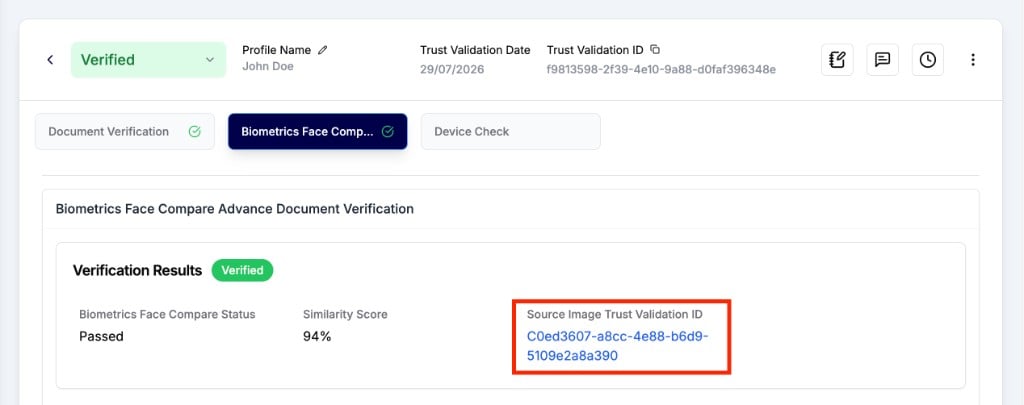
When a matching prior Trust Validation Result is found throughstvid, the system will:
- retrieve the Biometrics Verification selfie from that Trust Validation
- compare it against the face from the current Document Verification session
- generate a similarity score
- include a Source Image Trust Validation ID linking back to the source Trust Validation Result, so you can trace which biometric selfie was used for comparison
Summary
Advanced Face Compare can reuse a Biometrics Verification selfie from another Trust Validation by ID. To use this flow:- create Trust Flow 1 with Biometrics Verification and complete it
- create Trust Flow 2 with Document Verification and enable Perform Advance Face Compare (enable the company feature flag if the setting is not available)
- pass
stvidon the Trust Flow 2 preview / Direct Link URL with the Trust Validation ID from Trust Flow 1 - use the returned similarity score to help determine whether the faces match
stvid and performs face compare against the current Document Verification session.