The User experience section in Trust Flow Settings controls how applicants move through the flow. After you create a Trust Flow, open Trust Flow Settings and go to User experience.

Settings

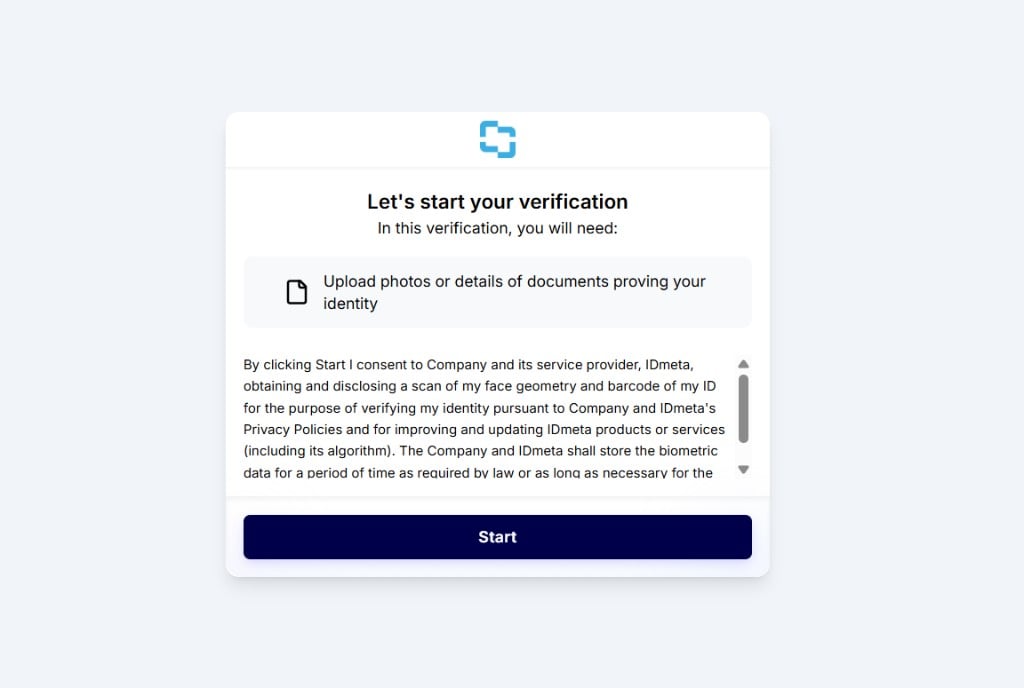
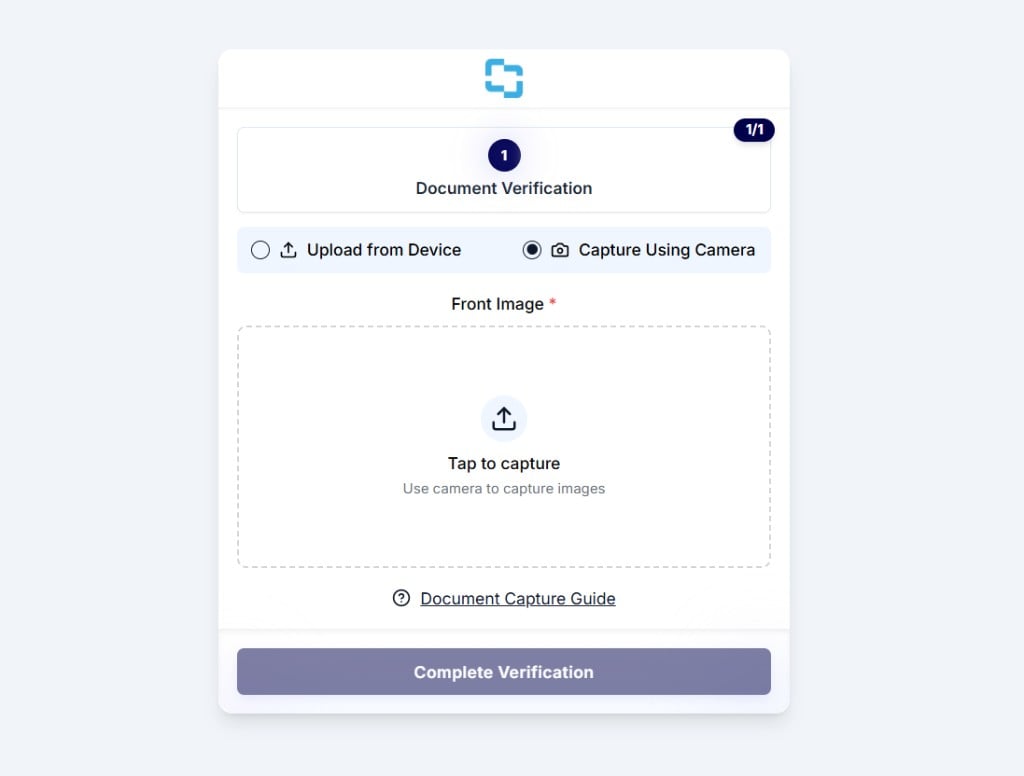
When enabled, the direct link will bypass the welcome/consent screen and begin immediately with the first verification step. Toggle disabled — Applicants see the Welcome & Consent page before verification starts. Welcome and Consent page shown when Skip Welcome and Consent Page is disabled Toggle enabled — Applicants skip Welcome & Consent and go straight to the first verification step. First verification step shown when Skip Welcome and Consent Page is enabled
Skip Verification Completed Page

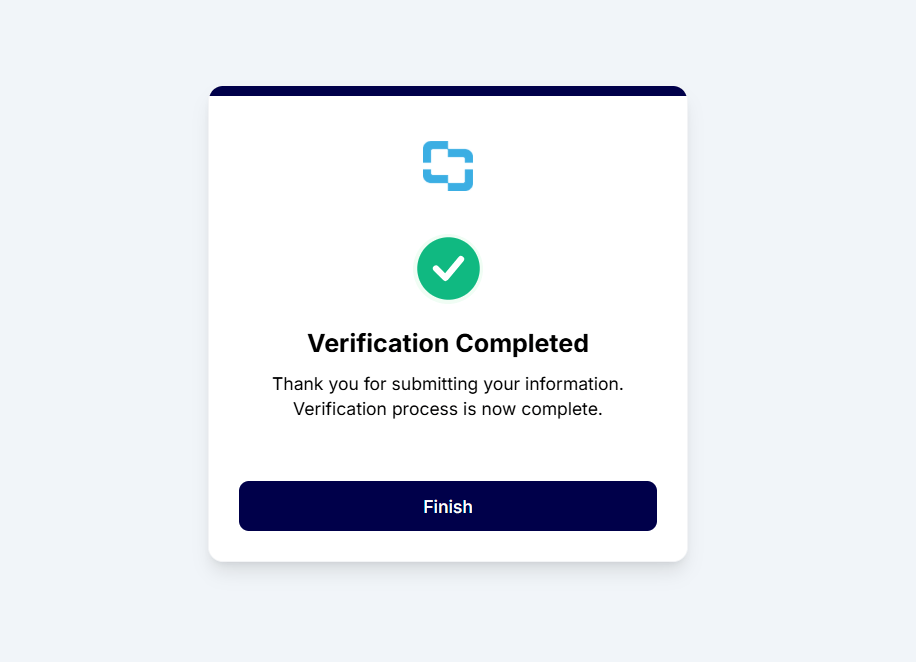
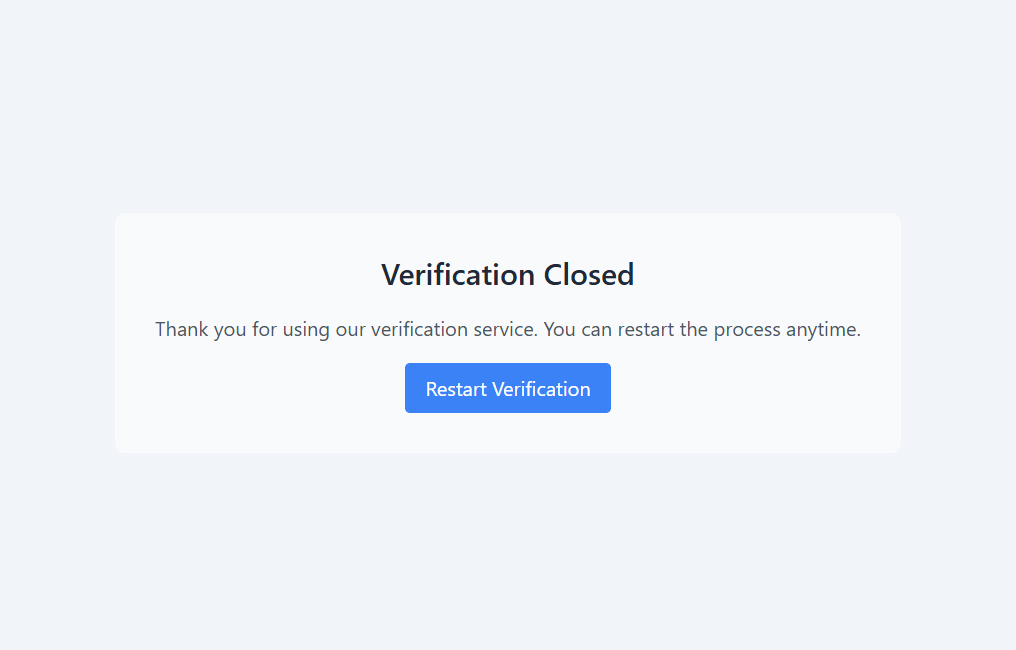
When enabled, the completed page will be skipped after the final KYC step and the direct link will end on a blank page. Toggle disabled — Applicants see the Verification Completed page after finishing verification. Verification Completed page shown when Skip Verification Completed Page is disabled Toggle enabled — Applicants skip the Verification Completed page and see the Verification Closed screen instead. Verification Closed page shown when Skip Verification Completed Page is enabled
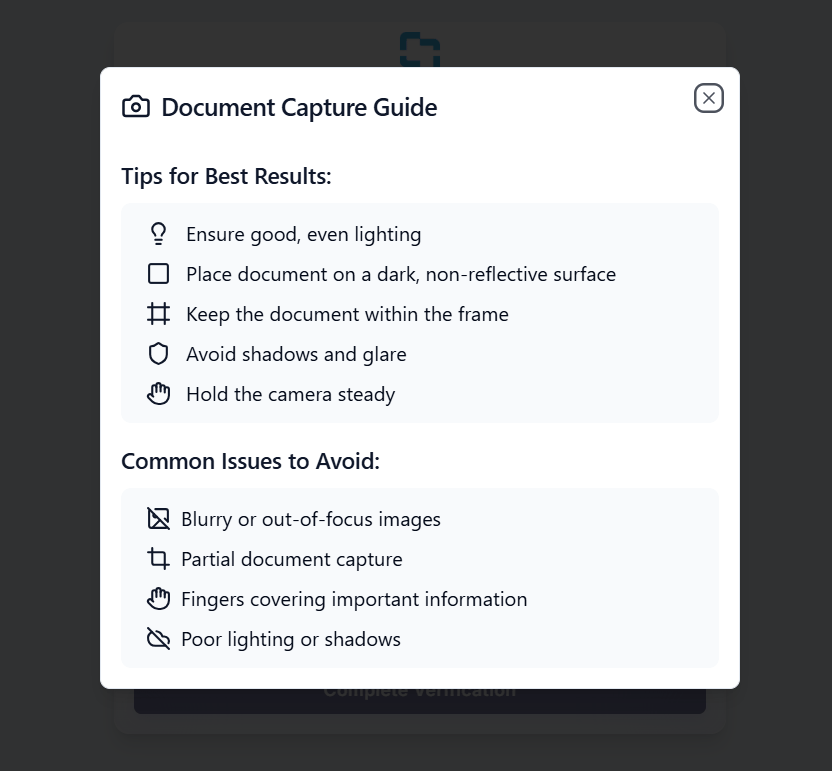
Display Verification Guide

Show the document and selfie guide popup when users enter those verification steps. Toggle enabled — Applicants see the Document Capture Guide (and related selfie guide) when they enter those verification steps. Document Capture Guide popup shown when Display Verification Guide is enabled
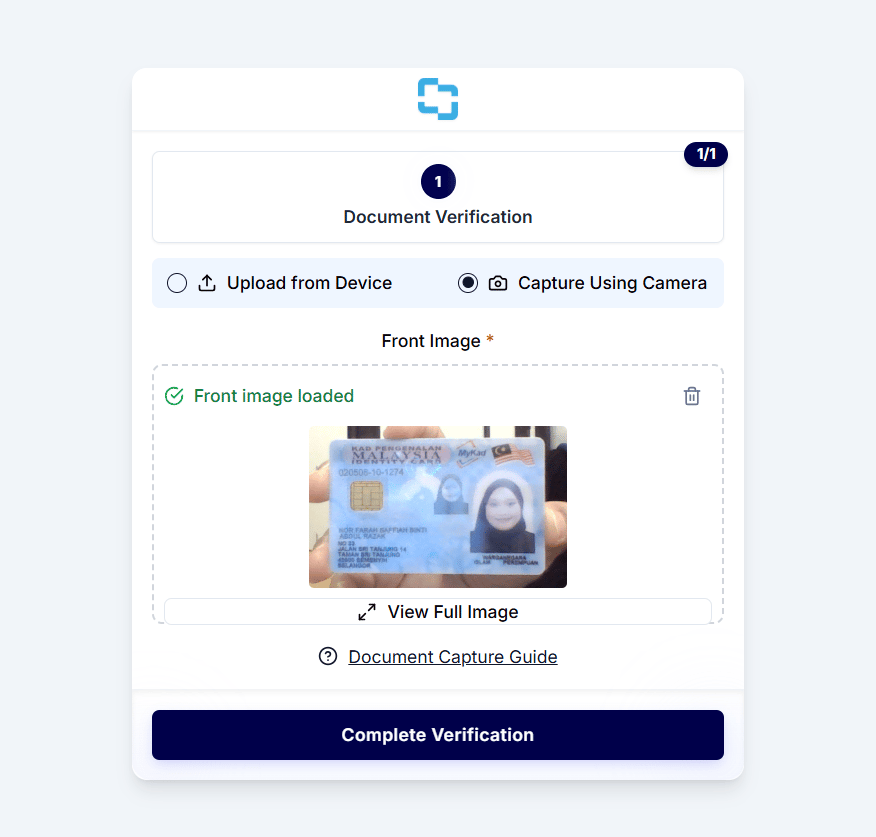
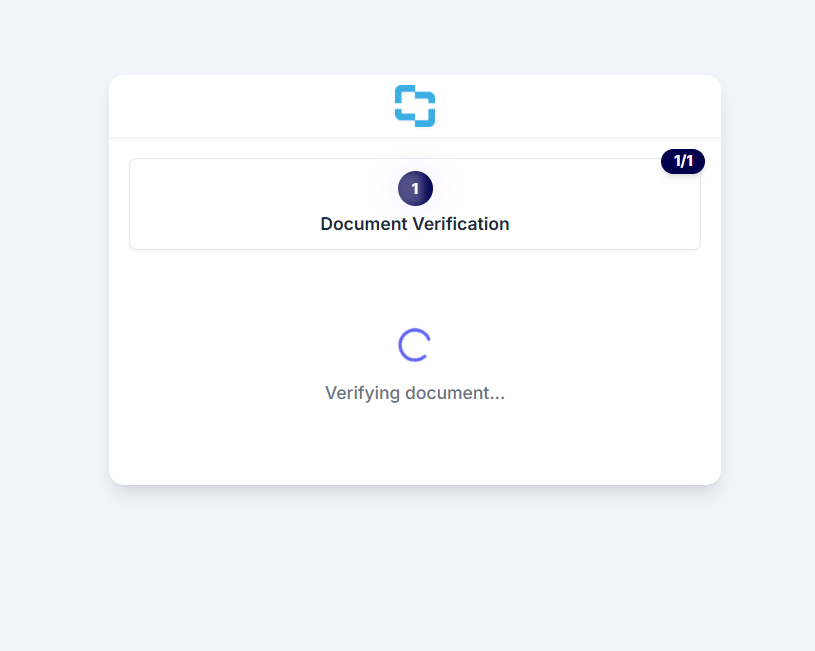
Auto Submit on Camera Capture

Automatically submits the verification when all required documents are captured via camera. Manual uploads will still require manual submission. Toggle disabled — After camera capture, applicants must click Complete Verification to submit. Document verification screen with Complete Verification button when Auto Submit on Camera Capture is disabled Toggle enabled — After camera capture, the verification submits automatically and shows a verifying state. Verifying document screen when Auto Submit on Camera Capture is enabled
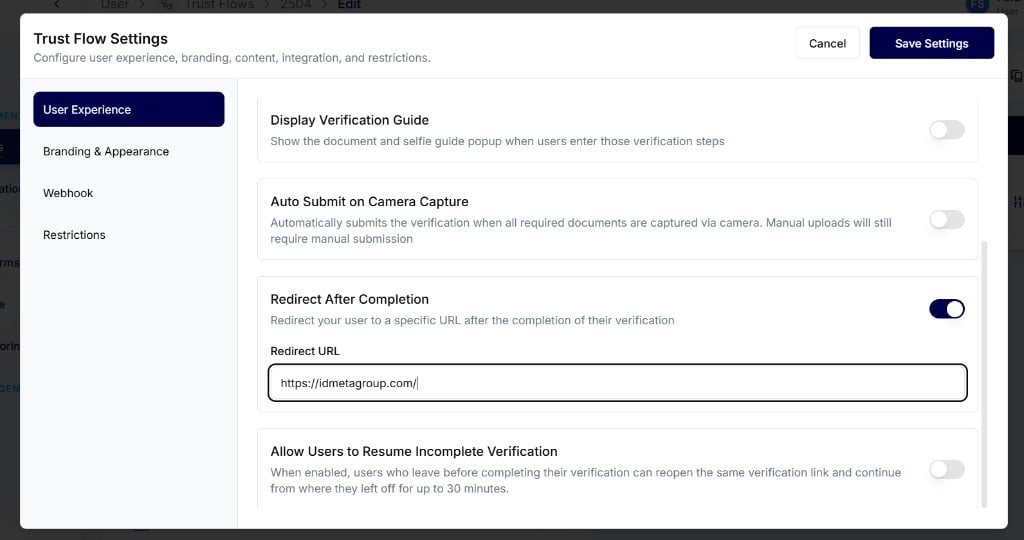
Redirect After Completion

Redirect your user to a specific URL after the completion of their verification. Toggle enabled — Enter a Redirect URL in Trust Flow Settings. Applicants complete the Trust Flow as usual. Redirect After Completion enabled with Redirect URL in Trust Flow Settings When the applicant clicks Complete Verification, they are redirected to the URL you entered. Complete Verification button at the end of the Trust Flow After they click Complete Verification, they are taken to the redirect destination. Example destination page after redirect
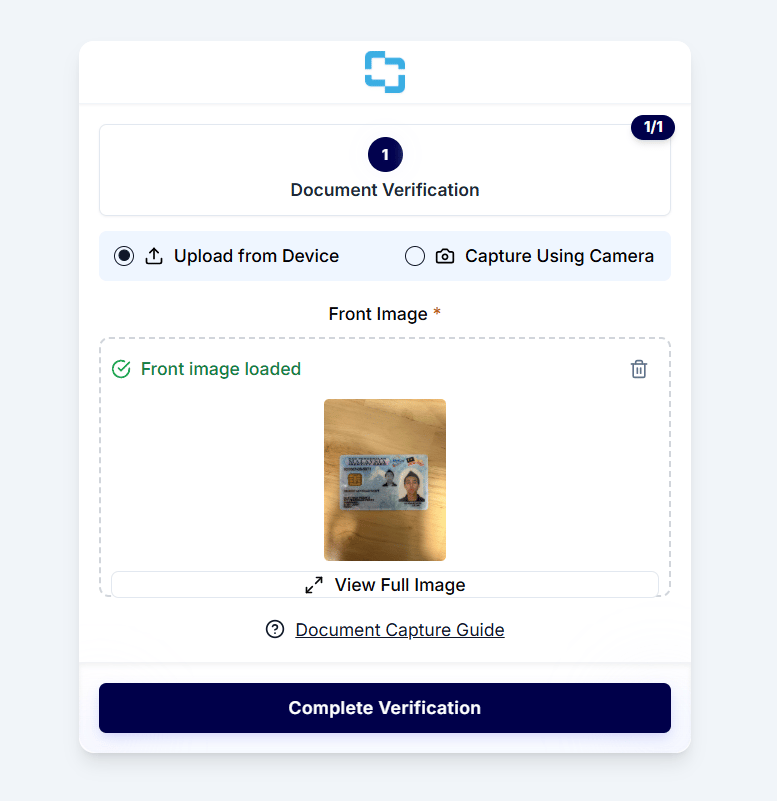
Allow Users to Resume Incomplete Verification

When enabled, users who leave before completing their verification can reopen the same verification link and continue from where they left off for up to 30 minutes. For example, if your Trust Flow has two steps such as Document Verification and Biometrics Verification:
  1. The applicant completes Document Verification (for example, uploads the document).
  2. The flow moves to Biometrics Verification.
  3. If the applicant refreshes the page before completing Biometrics Verification, the page stays on Biometrics Verification.
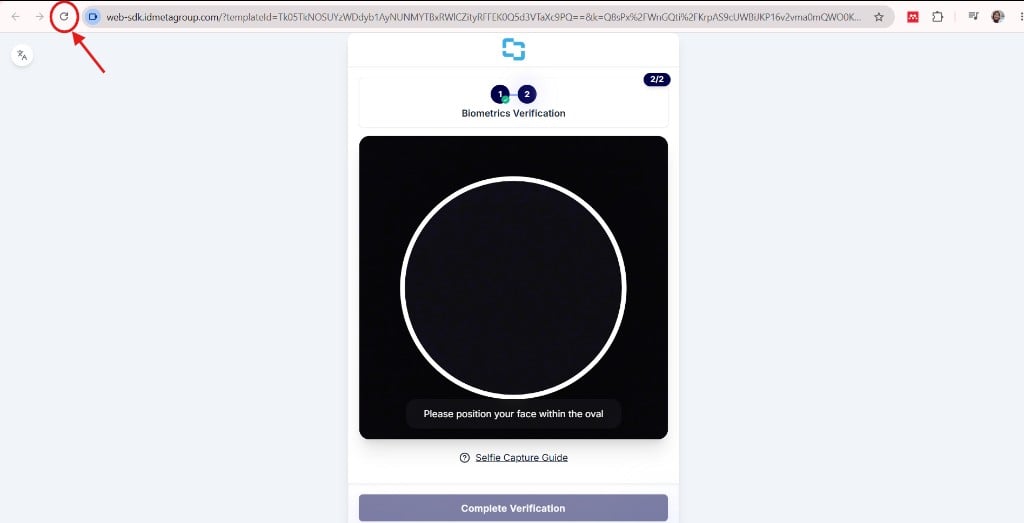
Biometrics Verification step with browser refresh highlighted when resume incomplete verification is enabled Toggle enabled — Refreshing the page keeps the applicant on the current incomplete step (for example, Biometrics Verification). The same verification link can be reused for up to 30 minutes. After 30 minutes, the applicant must start again from the beginning (for example, Document Verification). Toggle disabled — Refreshing the page requires the applicant to start again from the first step (for example, Document Verification). For setup walkthroughs and related screenshots, see Creating a Trust Flow and Trust Flow Settings.