

Supported fields
In the form builder, open Form Elements and drag elements onto your form. Advance Custom Forms support these fields:- Full Name — Adds First Name and Last Name together so the applicant can enter their name.
- Email — Collects an email address and checks that the format is valid.
- Address — Adds a group of address fields so you can collect a full location.
- Text Input — A single-line field for short answers.
- Number Input — Accepts numbers only.
- Date Input — Opens a date picker for values such as a start date or date of birth.
- File Upload — Lets the applicant attach a file, such as a document or image.
- Single Select — A dropdown where the applicant chooses one option. Use this when a condition should run on a specific value.
- Multi Select — Lets the applicant choose more than one option from a list.
Conditions
Use Conditions to show or hide fields based on what the applicant enters. Fields you add in the form builder appear in the condition dropdowns. You can only reference fields that already exist on the form.Add a condition
1
Open Conditions
In the form builder, click Conditions.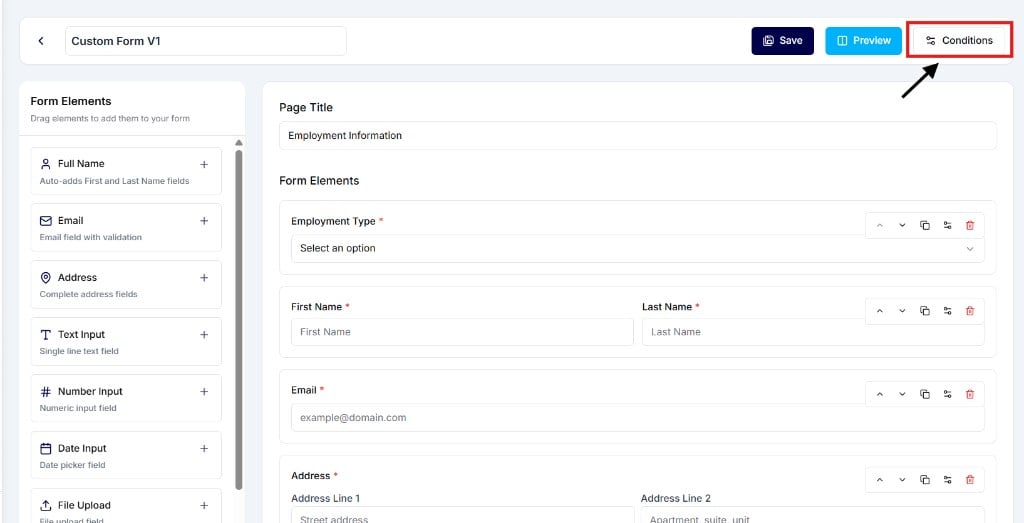
2
Create a condition
Click Add Condition.The Conditions page lists every rule you have already created. Each rule shows the IF value and the fields it shows or hides.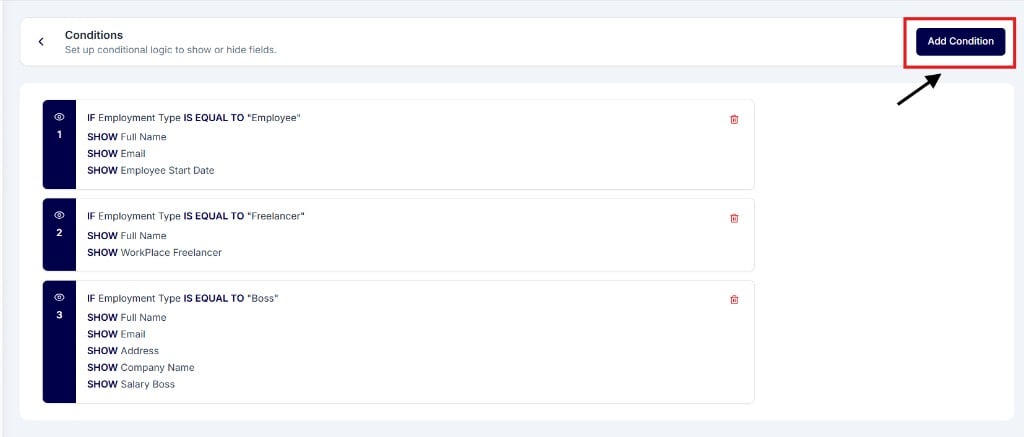
3
Set the IF and DO rule
On the Show / Hide Field page, configure the IF and DO blocks. Click Add Action if this rule should show or hide more than one field.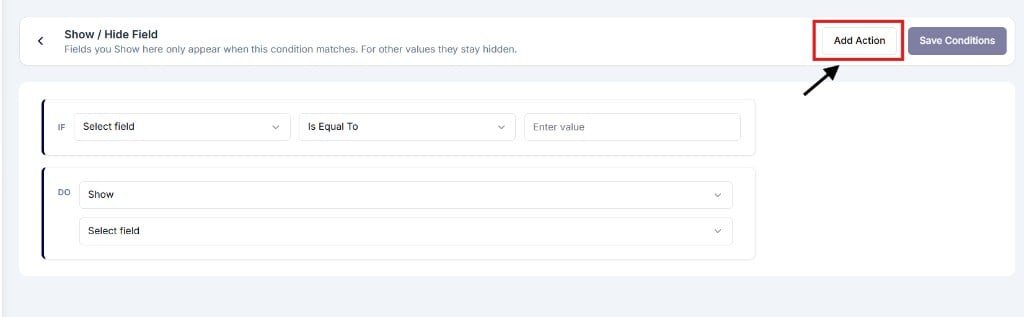
IF
The IF block defines when the rule runs.- Select field — Choose a field you already added in the form builder.
- Operator — Choose how to compare the answer. For example, Is Equal To.
- Enter value — Enter the value that must match. When the applicant’s answer matches this value, the DO action runs.
DO
The DO block defines what happens when the IF condition is true.- Action — Choose what to do with another field on the form:
- Show — Display one field.
- Hide — Hide one field.
- Show multiple — Display more than one field.
- Hide multiple — Hide more than one field.
- Select field — Choose the field or fields you already added in the form builder that should be shown or hidden.