> ## Documentation Index
> Fetch the complete documentation index at: https://docs.idmetagroup.com/llms.txt
> Use this file to discover all available pages before exploring further.
# Creating a Trust Flow
> Create a verification sequence with the Trust Flow Builder and save it for use in your workflows.
You use a Trust Flow to define the verifications that confirm an individual’s identity.
## Creating a Trust Flow
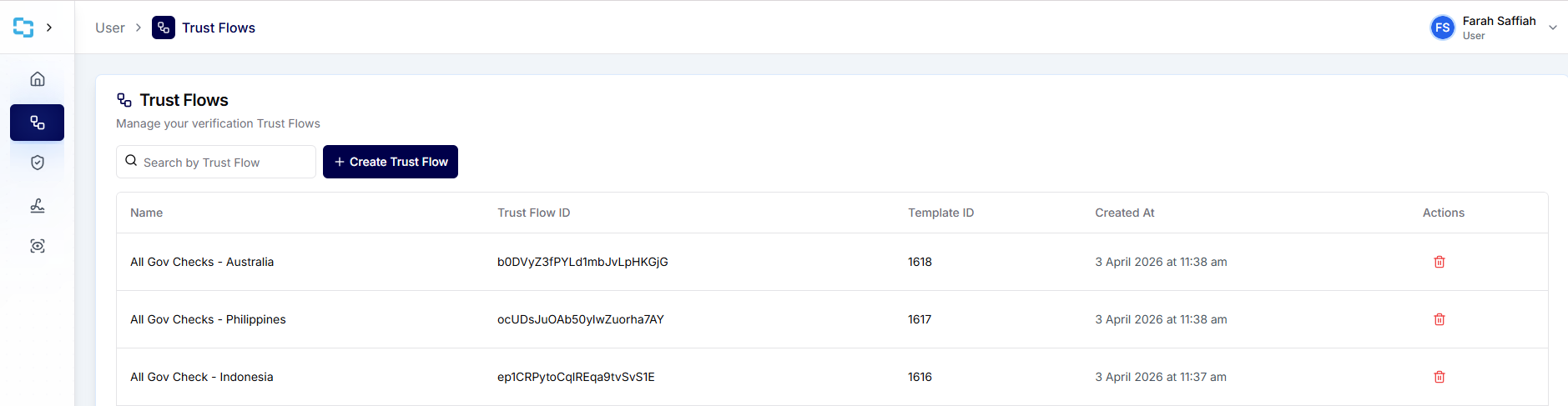
From the Trust Flows page, you can view all available flows and create new ones by click + Create Trust Flow.
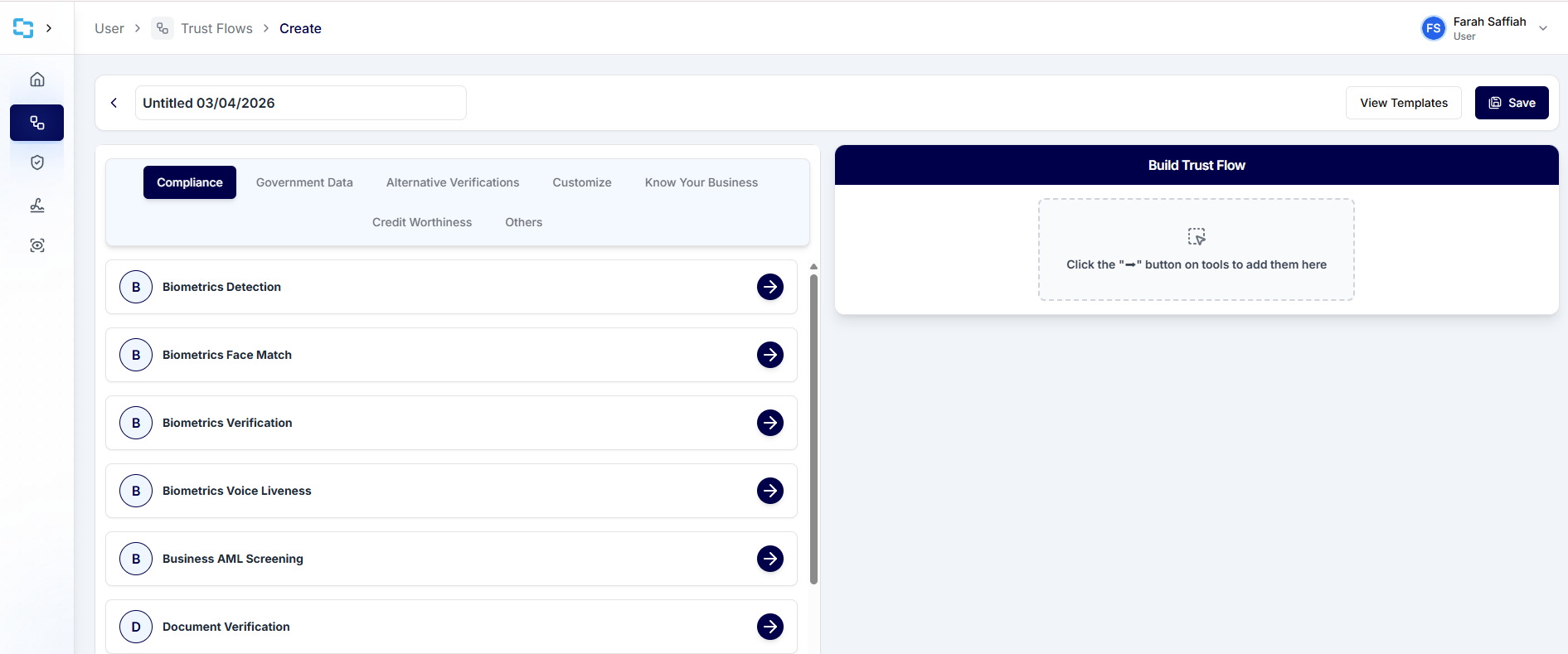 Steps:
1. Enter a name for your flow (e.g., “Business AML Screening”).
2. On the left panel, you’ll see the available verification tools grouped by category.
3. On the right panel, you’ll build your flow by clicking the → button into sequence.
4. Arrange the steps in the order you want them to run.
5. Once complete, click **Save**. You can then test the flow by clicking Preview.
## Verification Types
To understand which verification types are available, use the [Verification Types](/products) page as your reference.
## Trust Flow Settings
Use the **Trust Flow Settings** panel to define how your trust flow runs.
Once you have created a Trust Flow, you can use the Trust Flow Settings options to preview, test, or integrate it with other systems.
Steps:
1. Enter a name for your flow (e.g., “Business AML Screening”).
2. On the left panel, you’ll see the available verification tools grouped by category.
3. On the right panel, you’ll build your flow by clicking the → button into sequence.
4. Arrange the steps in the order you want them to run.
5. Once complete, click **Save**. You can then test the flow by clicking Preview.
## Verification Types
To understand which verification types are available, use the [Verification Types](/products) page as your reference.
## Trust Flow Settings
Use the **Trust Flow Settings** panel to define how your trust flow runs.
Once you have created a Trust Flow, you can use the Trust Flow Settings options to preview, test, or integrate it with other systems.
 ### a. Preview Button
* Click **Preview** to open the flow in a new browser tab.
* This lets you test the flow as an end user would experience it, ensuring all steps run correctly before going live.
### a. Preview Button
* Click **Preview** to open the flow in a new browser tab.
* This lets you test the flow as an end user would experience it, ensuring all steps run correctly before going live.
 ## Integration
For a full overview, see the [Integration overview](/integration-overview) page.
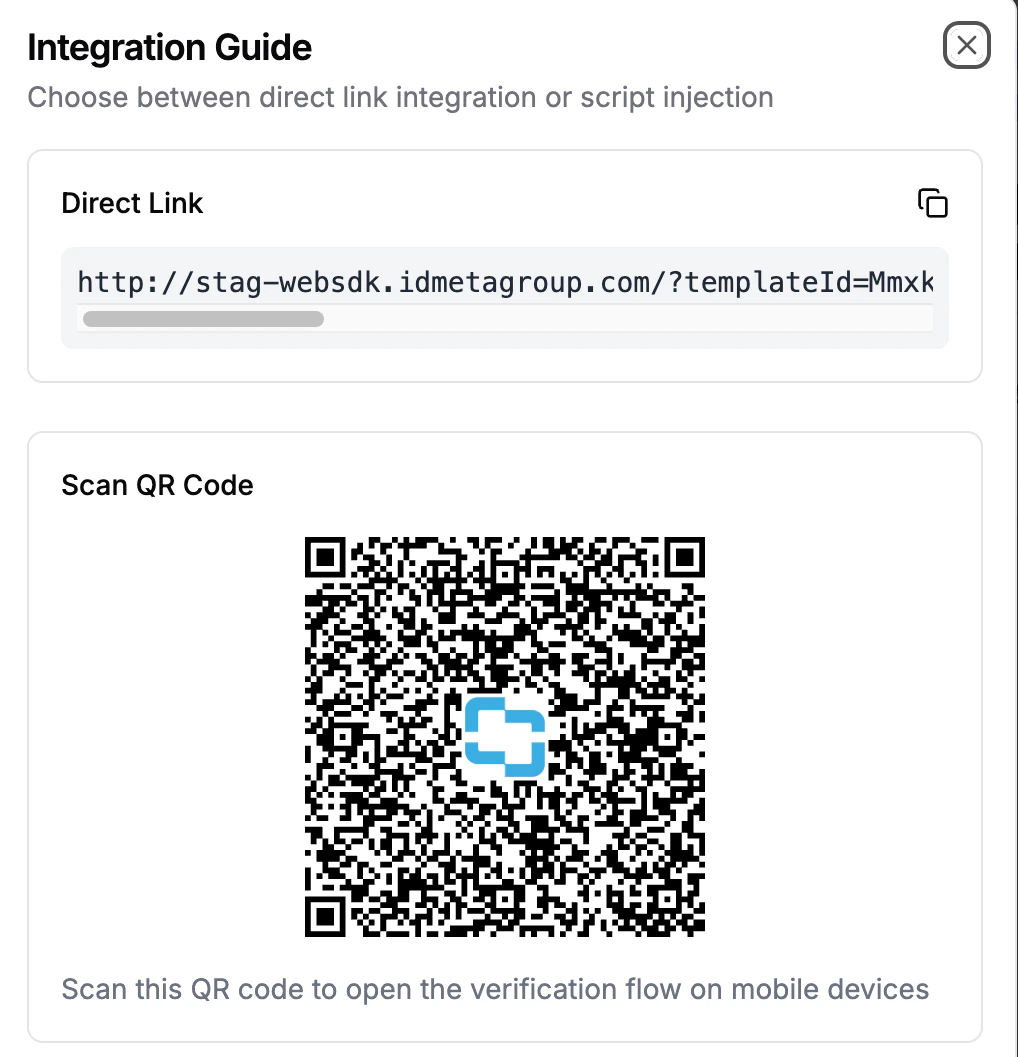
Click on the `<>` button to access sharing options for your Trust Flow.
## Integration
For a full overview, see the [Integration overview](/integration-overview) page.
Click on the `<>` button to access sharing options for your Trust Flow.
 * Copy the direct link to share the flow with colleagues or partners for testing.
* Alternatively, scan the QR code to launch the flow instantly on a mobile device.
* These options make it easy to distribute and test flows without manual setup.
* Copy the direct link to share the flow with colleagues or partners for testing.
* Alternatively, scan the QR code to launch the flow instantly on a mobile device.
* These options make it easy to distribute and test flows without manual setup.
 ## Templates
Templates automatically add specific **Verification Types** and the corresponding **Tool settings** needed to achieve the trust flow goal for your users.
## View History
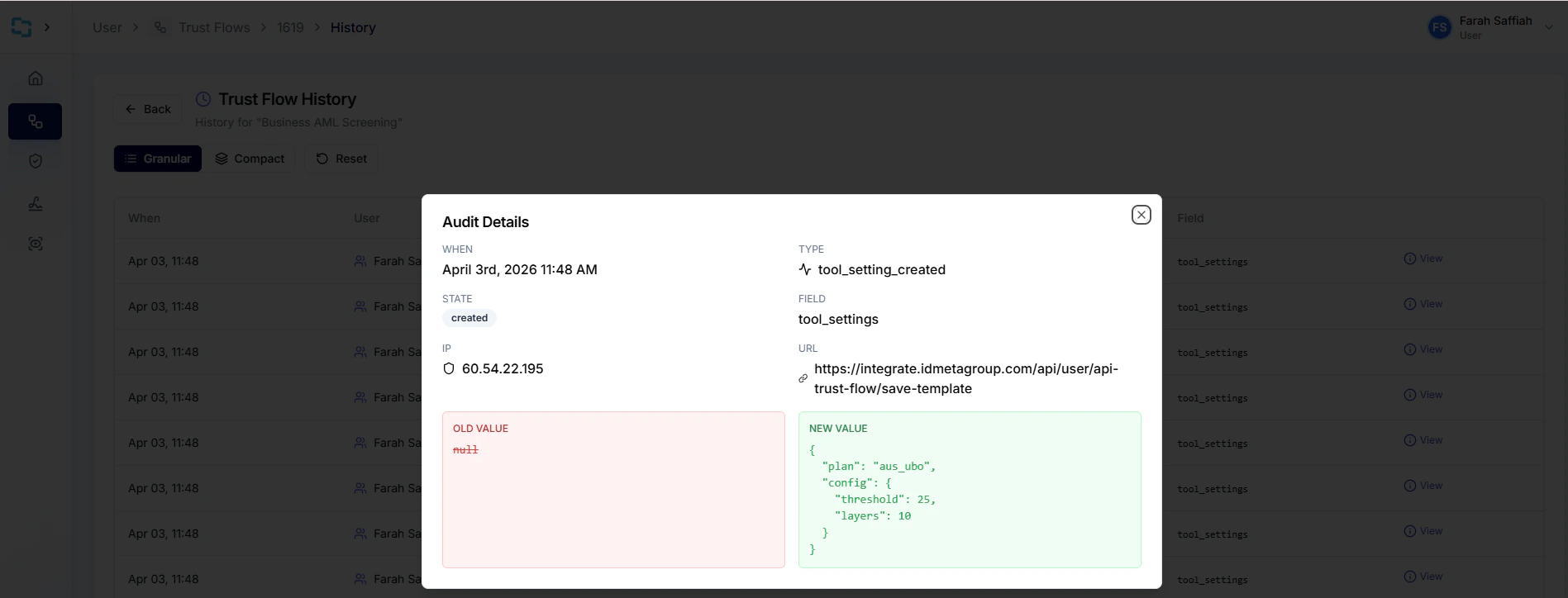
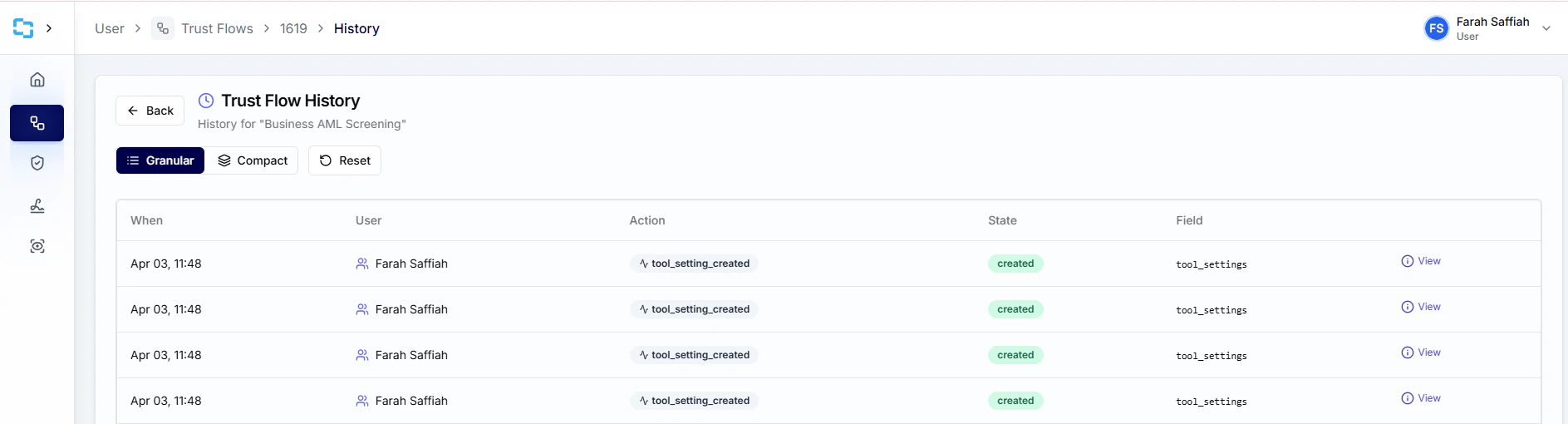
**View History** lets you review past activity for the trust flow.
## Templates
Templates automatically add specific **Verification Types** and the corresponding **Tool settings** needed to achieve the trust flow goal for your users.
## View History
**View History** lets you review past activity for the trust flow.
 The table below lists view history. Click an entry to open the audit details.
 The screen below shows the audit details.