> ## Documentation Index
> Fetch the complete documentation index at: https://docs.idmetagroup.com/llms.txt
> Use this file to discover all available pages before exploring further.
# Introduction
> Overview of Trust Flow Settings sections for user experience, branding, webhooks, and restrictions.
After you [create a Trust Flow](/trust-flows/creating-a-trust-flow), open **Trust Flow Settings** to configure how applicants move through verification, how the flow looks, where updates are sent, and what submission limits apply.
## User Experience
The **User Experience** section controls how applicants move through the flow. You can skip screens, show verification guides, auto submit camera captures, set a redirect URL, and allow users to resume incomplete verifications.
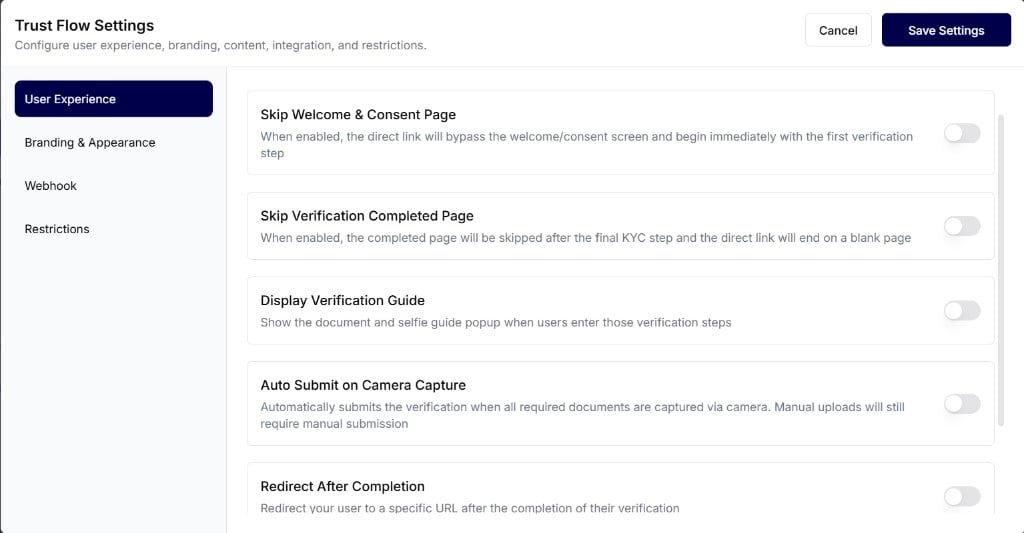 Control welcome screens, guides, auto submit, redirects, and resume behavior.
## Branding & Appearance
The **Branding & Appearance** section lets you control the visual style and text shown to applicants during verification. Update your logo, typography, privacy policy, and completion screen title and body.
Control welcome screens, guides, auto submit, redirects, and resume behavior.
## Branding & Appearance
The **Branding & Appearance** section lets you control the visual style and text shown to applicants during verification. Update your logo, typography, privacy policy, and completion screen title and body.
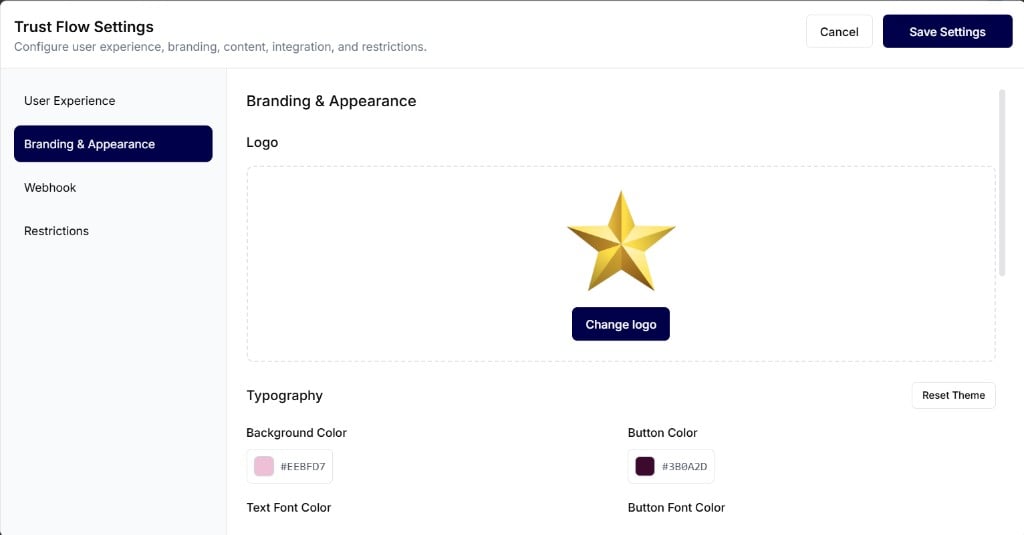 Customize logo, colors, fonts, privacy policy text, and completion screen content.
## Webhook
The **Webhook** section lets you send real-time updates to your system when verification events happen. Enable **Verification Webhook**, then enter your **Webhook URL** and **Webhook Secret**.
Customize logo, colors, fonts, privacy policy text, and completion screen content.
## Webhook
The **Webhook** section lets you send real-time updates to your system when verification events happen. Enable **Verification Webhook**, then enter your **Webhook URL** and **Webhook Secret**.
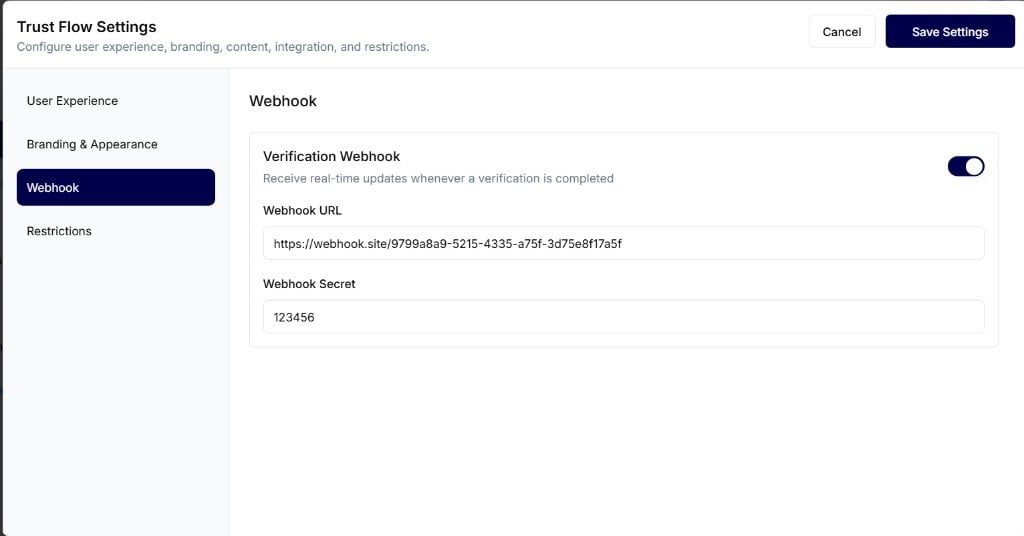 Send real-time verification completion updates to your endpoint.
## Restrictions
The **Restrictions** section helps you prevent repeated submissions in a short period. Enable **Limit Verification Resubmissions** and set a **Block Duration (Hours)** after a successful submission.
Send real-time verification completion updates to your endpoint.
## Restrictions
The **Restrictions** section helps you prevent repeated submissions in a short period. Enable **Limit Verification Resubmissions** and set a **Block Duration (Hours)** after a successful submission.
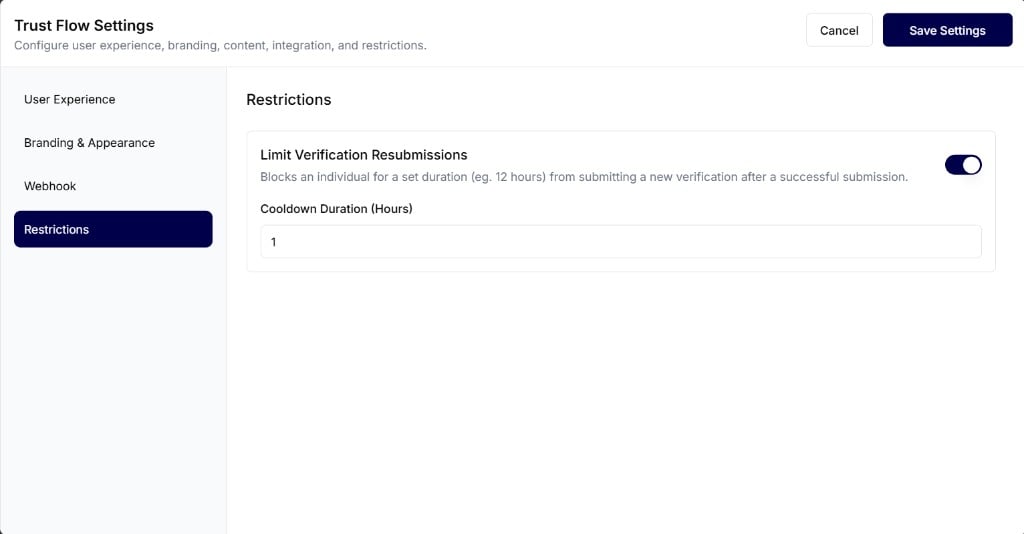 Limit how soon an applicant can submit a new verification after a successful one.
For related Trust Flow setup, see [Trust Flow Settings](/trust-flows/trust-flow-settings).
Limit how soon an applicant can submit a new verification after a successful one.
For related Trust Flow setup, see [Trust Flow Settings](/trust-flows/trust-flow-settings).