> ## Documentation Index
> Fetch the complete documentation index at: https://docs.idmetagroup.com/llms.txt
> Use this file to discover all available pages before exploring further.
# Branding & Appearance
> Customize the visual style and text shown to applicants during Trust Flow verification.
The **Branding & appearance** section in Trust Flow Settings lets you control the visual style and text shown to applicants during verification.
After you [create a Trust Flow](/trust-flows/creating-a-trust-flow), open **Trust Flow Settings** and go to **Branding & appearance**.
## Logo
Upload your company logo. Click the upload area to add an image that appears during the verification flow.
After you upload a logo, it appears at the top of the verification screens, such as the Welcome & Consent page.
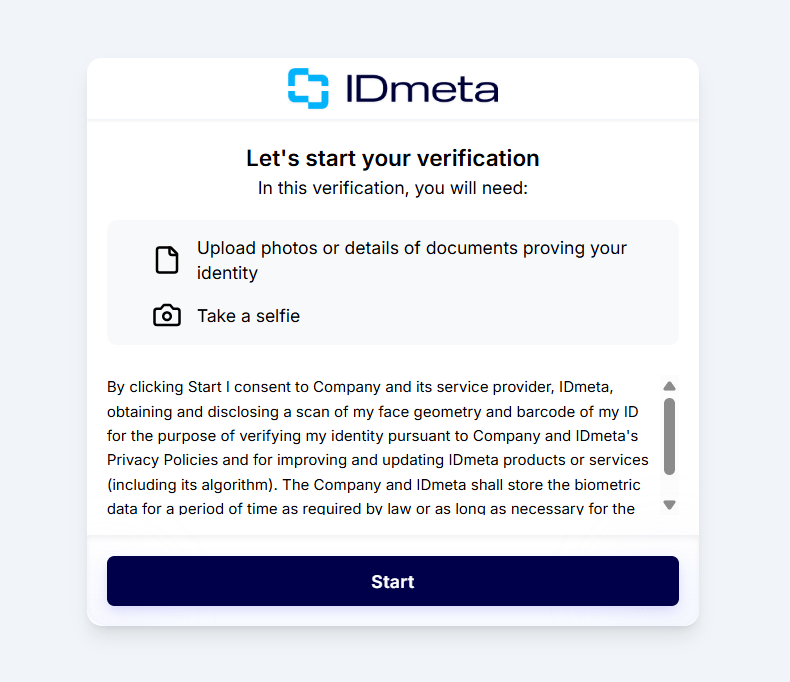 ## Typography
Use the **Typography** settings to control colors and fonts. You can also use **Reset Theme** to restore the default theme.
* **Background Color** — Background color of the verification screens.
* **Button Color** — Color of primary action buttons.
* **Text Font Color** — Color of body and heading text.
* **Button Font Color** — Color of text on primary action buttons.
* **Font Family** — Font used across the verification screens.
* **Font Size** — Base font size for text.
## Typography
Use the **Typography** settings to control colors and fonts. You can also use **Reset Theme** to restore the default theme.
* **Background Color** — Background color of the verification screens.
* **Button Color** — Color of primary action buttons.
* **Text Font Color** — Color of body and heading text.
* **Button Font Color** — Color of text on primary action buttons.
* **Font Family** — Font used across the verification screens.
* **Font Size** — Base font size for text.
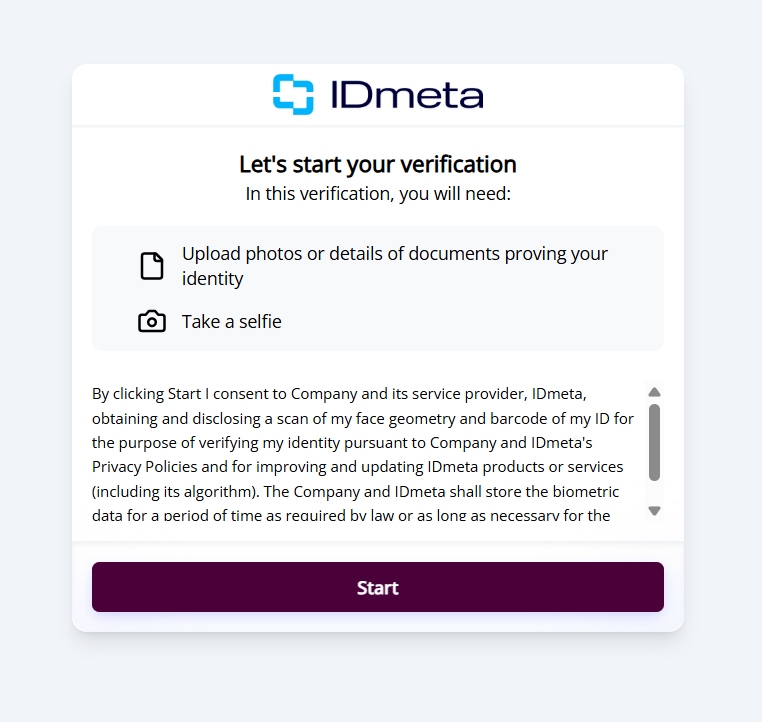
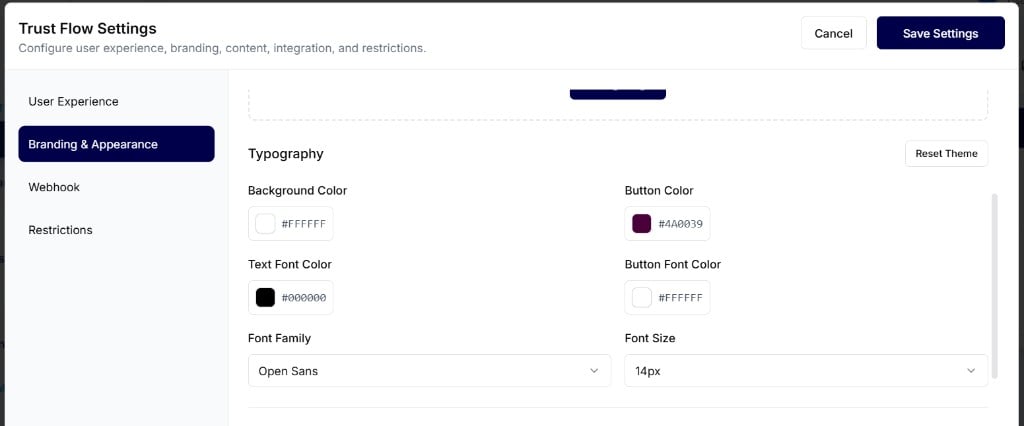 Changes apply to the verification screens. For example, updating the button color and font family updates the **Start** button and text style on the Welcome & Consent page.
 ## Text & content
### Privacy Policy
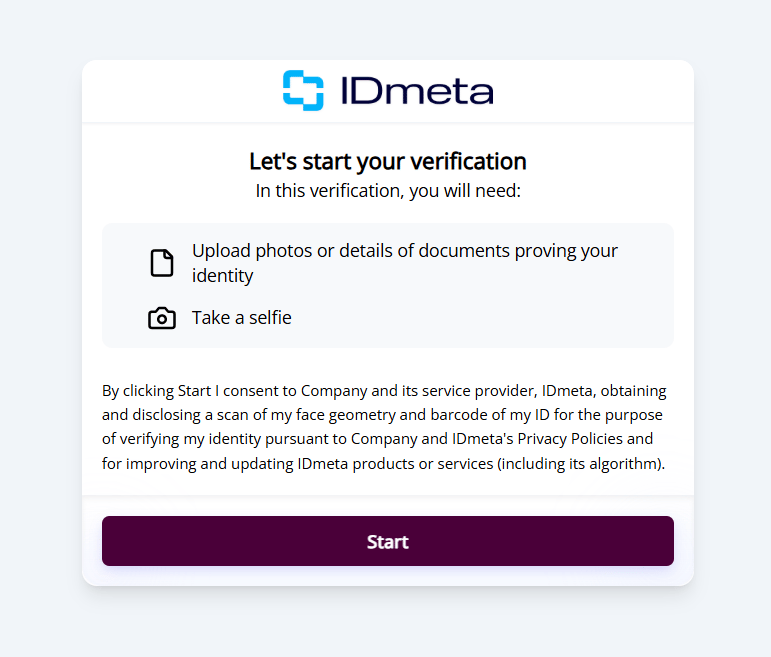
Enter the privacy policy text shown to applicants before they begin verification. This text appears on the Welcome & Consent page.
Before you update it, the Welcome & Consent page may show the default longer consent text.
## Text & content
### Privacy Policy
Enter the privacy policy text shown to applicants before they begin verification. This text appears on the Welcome & Consent page.
Before you update it, the Welcome & Consent page may show the default longer consent text.
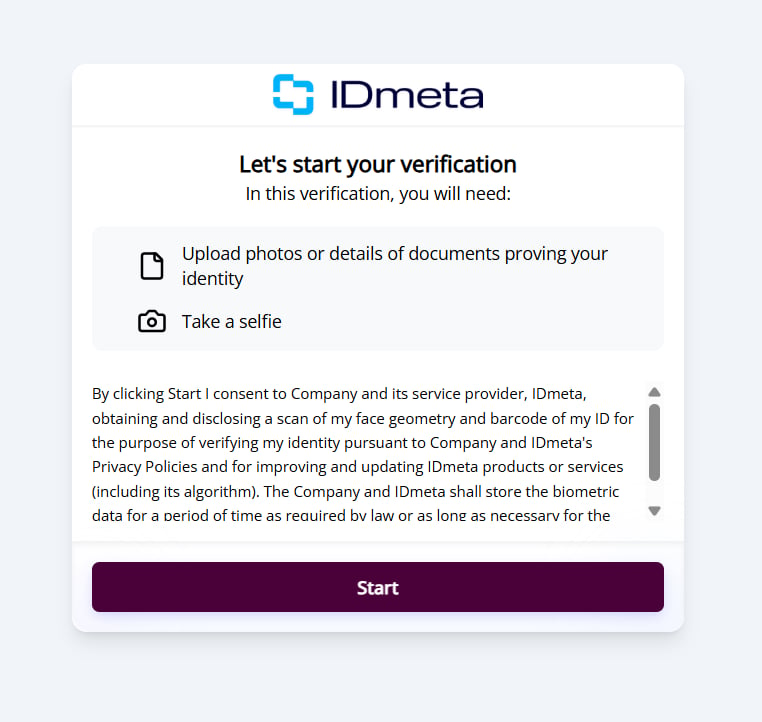 After you update the **Privacy Policy** field in Branding & Appearance, the Welcome & Consent page shows your new text.
 ### Completion Screen Title
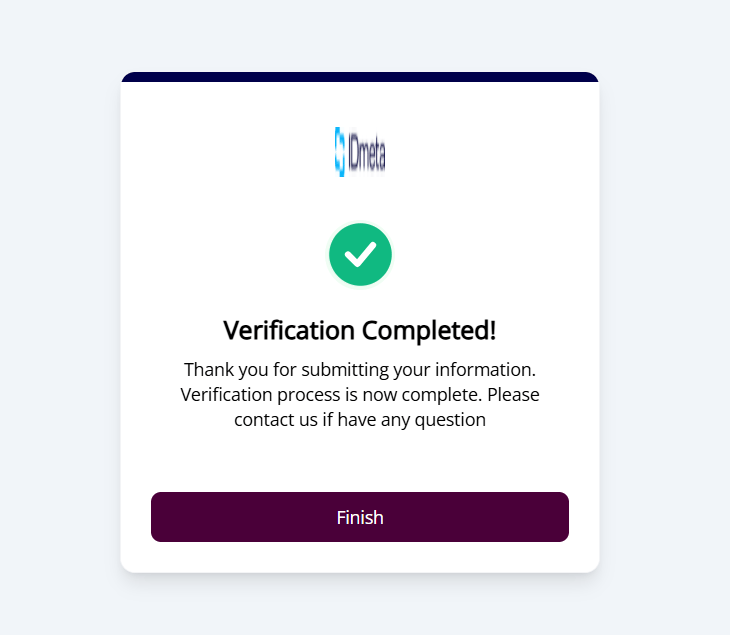
Enter the title shown on the final completion card (for example, `Verification Completed!`).
### Completion Screen Body
Enter the message shown on the final completion card (for example, `Thank you for submitting your information. Verification process is now complete. Please contact us if have any question`).
Update these fields in Branding & Appearance:
### Completion Screen Title
Enter the title shown on the final completion card (for example, `Verification Completed!`).
### Completion Screen Body
Enter the message shown on the final completion card (for example, `Thank you for submitting your information. Verification process is now complete. Please contact us if have any question`).
Update these fields in Branding & Appearance:
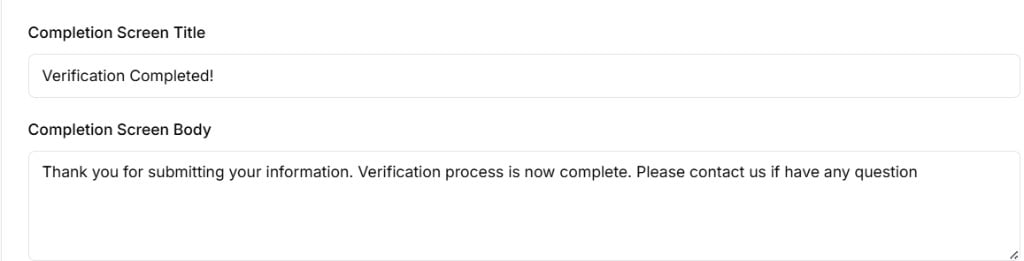 After you save the settings, the completion screen shows your updated title and body text.
 For related Trust Flow setup, see [Trust Flow Settings](/trust-flows/trust-flow-settings).