> ## Documentation Index
> Fetch the complete documentation index at: https://docs.idmetagroup.com/llms.txt
> Use this file to discover all available pages before exploring further.
# Adding Webhooks to Trust Flow
> Enable verification webhooks in Trust Flow settings to receive completion updates in your system.
Use this setup when you want your system to receive webhook events for completed verifications.
## Steps
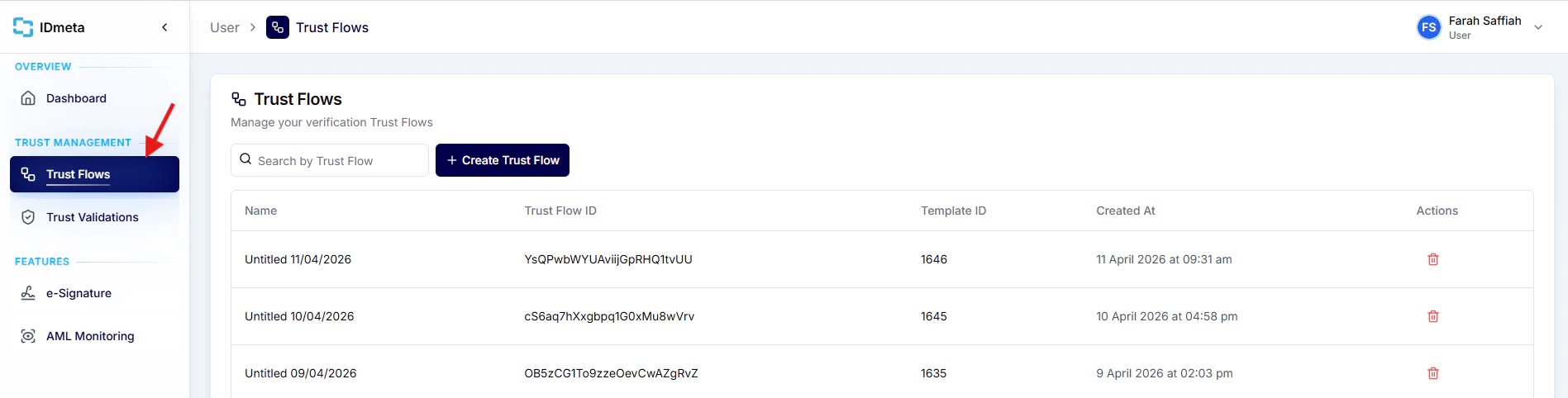
1. In the left menu, go to **Trust Flows**.
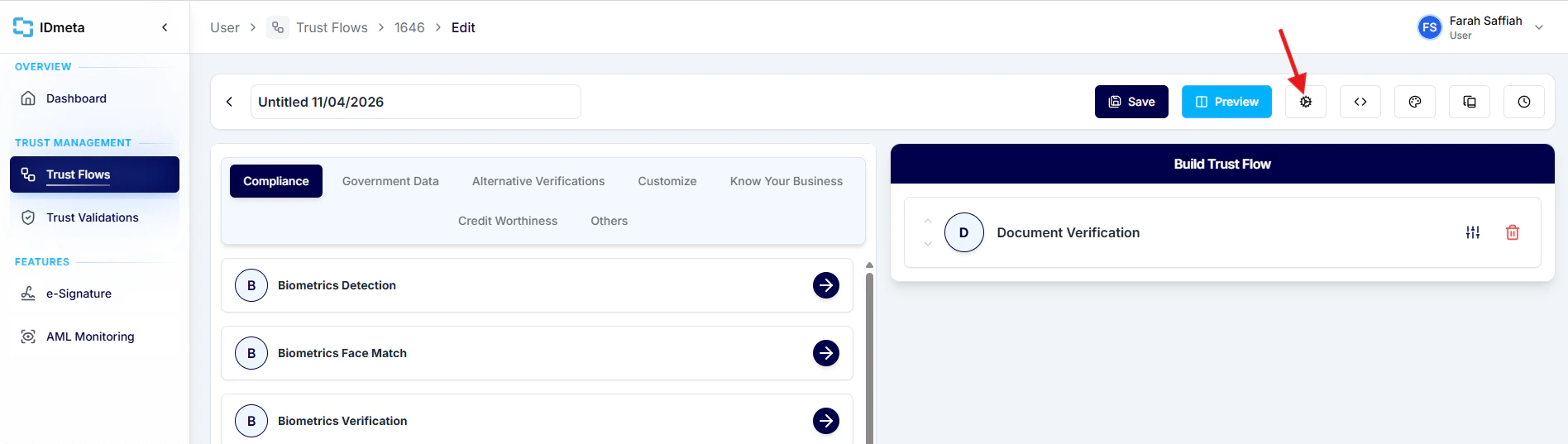
 2. Open a Trust Flow, then click the **Settings** icon.
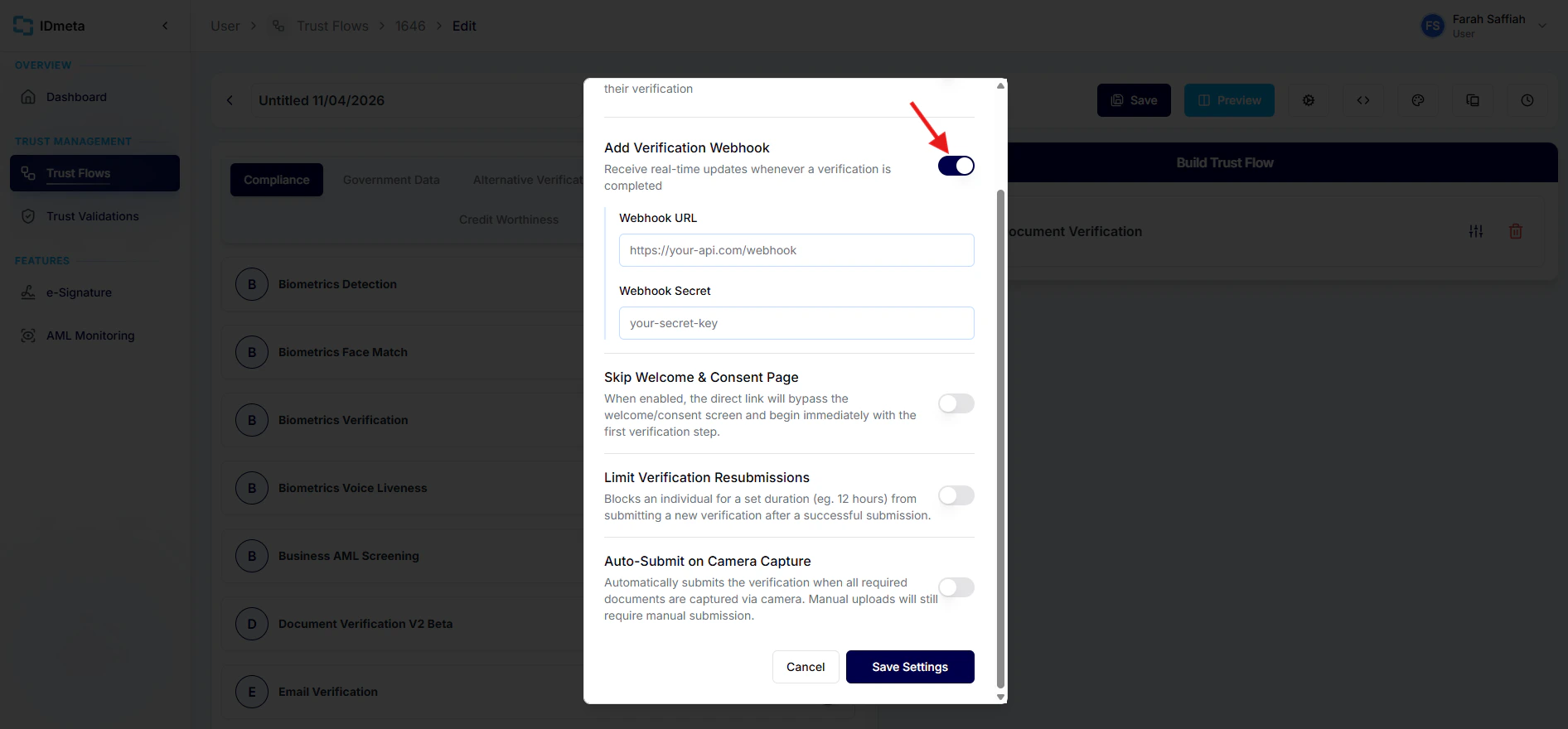
 3. Enable **Add Verification Webhook**, then enter your **Webhook URL** and **Webhook Secret**.
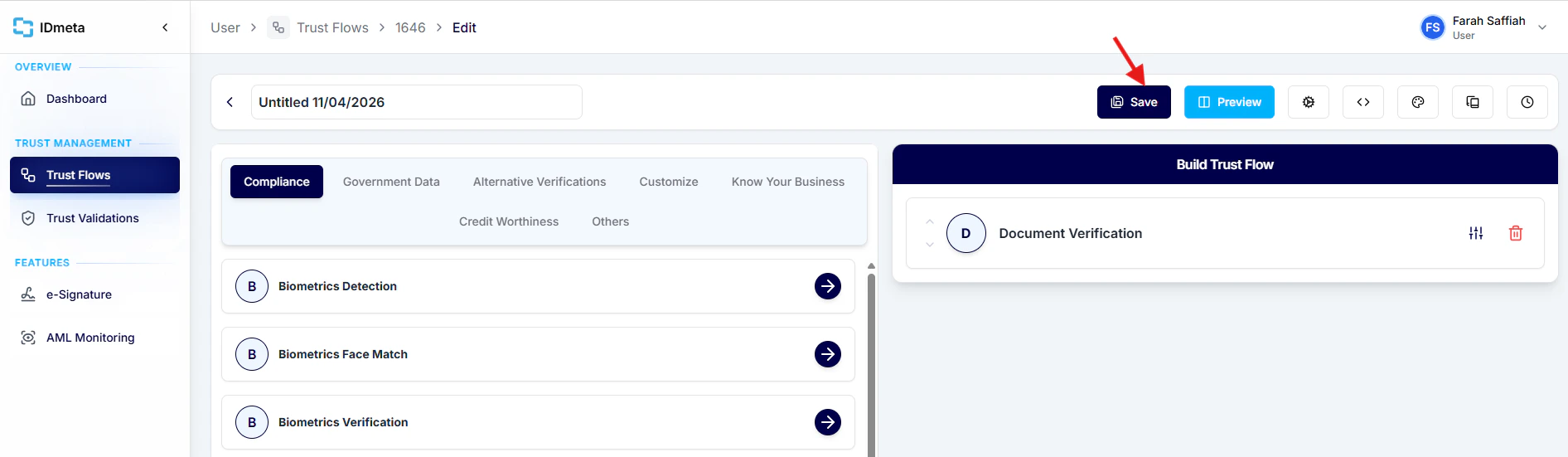
 4. Click **Save** to apply the webhook settings.
 After this is enabled, IDmeta sends webhook notifications whenever a verification is completed.